Editable Kids Travel Journal Canva KDP: A Practical Guide for Creating Print-Ready Travel Memories
Creating a memorable travel experience for a child goes beyond the journey itself. A well-structured travel journal can transform fleeting moments into lasting keepsakes, and for those producing content for Amazon KDP, the Editable Kids Travel Journal Canva KDP offers a streamlined path from concept to finished product. This article walks through what this interior actually delivers, how it fits into a real publishing workflow, and how to use it effectively whether you are a first-time publisher or an experienced creator.
What the Editable Kids Travel Journal Canva KDP Interior Includes
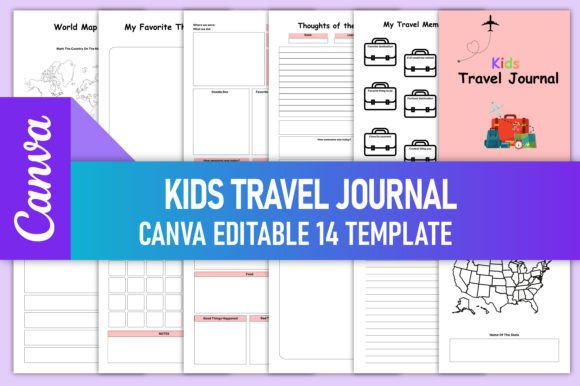
At its core, this product is a complete interior template designed for a children’s travel journal. It comes as a set of print-ready PDF files, along with PNG and JPG versions, and includes a fully editable Canva link. That means you can open it in Canva, modify colors, text, images, and layout elements, and then export a file ready for upload to Amazon KDP.
The interior spans 144 pages and uses 14 distinct templates repeated throughout. The page size is 8.5 x 11 inches with no bleed area, which simplifies the KDP upload process because you do not need to calculate trim or bleed margins. The files are in CMYK color mode at 300 PPI, both of which are critical for high-quality print results. The product has been KDP tested, meaning the formatting aligns with Amazon’s upload specifications.
Specific content sections include:
- Belongs To page – personalization area for the child’s name
- Thoughts of the Day – daily reflection prompts
- My Travel Memories – space to record highlights
- All About Country I Visited – country-specific fact pages
- Travel Plan – itinerary and planning pages
- Day Unite States Map and World Map – map-based activity pages
- My Favorite Food, My Favorite Journal, My Favorite Place, My Favorite Thing – dedicated favorite-memory pages
- Notes – open-ended journaling space
This structure gives children a guided but flexible way to document trips while giving you, the publisher, a ready-to-use layout that requires minimal additional design work.
Where This Fits Into a Publishing Workflow
If you are producing content for Amazon KDP, the interior is one half of the equation. You still need a cover, a book description, and a marketing plan. But the interior is often the most time-consuming part to create from scratch. Using a pre-built, editable interior like this one changes your workflow in several practical ways.
Before Publication: Setup and Customization
When you purchase this product, you receive a Canva template link. The first step is to make a copy of the document into your own Canva account. The product note specifically advises this to keep the original link active. Working on a copy also protects you from accidentally overwriting the original design.
Once copied, you can customize the journal to fit your brand or niche. For example, you might change the color palette to match a series of travel journals you are creating. You could replace placeholder text with your own prompts or add your logo on the Belongs To page. The Editable Kids Travel Journal Canva KDP is designed so that these changes are straightforward, even if you have only basic Canva experience.
Because the templates are layered and organized, you can hide or delete pages you do not need, or duplicate pages you want more of. If a particular child prefers more writing space and fewer prompts, you can adjust the layout by moving text boxes or images. This flexibility makes the same base product adaptable for different ages and trip types.
During the Design Process: Quality Control and Consistency
One of the biggest challenges in creating a print-ready book is maintaining consistency across all pages. The 14 templates in this interior are designed to work together visually, so you do not need to worry about mismatched fonts, image sizes, or margins. The repetition also creates a predictable rhythm for the child using the journal, which can be especially helpful for young writers who benefit from routine.
Because the files have been KDP tested, you can trust that the dimensions and color space are correct. CMYK at 300 PPI is the standard for print-on-demand, and the no-bleed specification means you do not have to deal with trim marks. When you export from Canva, you can select PDF Print and the file will be ready for upload without additional processing.
If you are working with a cover designer or creating your own cover in Canva, you can match the interior style easily since you have direct access to the color palette and font choices used in the templates.
After Upload: Long-Term Use and Adaptation
A single interior can be the foundation for multiple products. For instance, you could create different versions of the journal by changing the cover and the interior color scheme. One version might target family road trips, another could focus on international travel, and a third could be for summer camp. The same 14 templates and 144 pages can serve all of these variations, saving you hours of design work per product.
Because the files are editable in Canva, you can also update them over time. If you receive feedback from customers that a particular prompt is confusing or that they want more map pages, you can adjust your template and re-upload the revised version. This ability to iterate based on real user input is a practical advantage over static PDFs.
Practical Implementation Tips
Getting the most out of this interior involves a few straightforward steps. Here is how to integrate it into your routine.
1. Make a Master Copy
Before making any changes, duplicate the Canva template into your own account. This preserves the original design as a reference and backup. Name your copy clearly, such as “Kids Travel Journal – Master Template.” From this master copy, you can create variations for different products without losing the base design.
2. Plan Your Customizations
Decide what you want to customize before you start clicking. Common changes include:
- Color scheme – choose 2–3 main colors that appeal to your target age group
- Fonts – replace with a child-friendly font if the current one does not suit your style
- Prompts – tweak the questions or add new ones to fit specific travel themes
- Images – replace stock illustrations with your own or with licensed images that match your brand
- Personalization – ensure the Belongs To page is clearly designed for a child to write their name
Making these decisions upfront saves time and reduces the chance of needing to redo work.
3. Export Correctly for KDP
When you are ready to export, use the following settings in Canva:
- File type: PDF Print (not PDF Standard)
- Color profile: CMYK (if Canva asks, choose the CMYK option)
- DPI: 300 (Canva’s PDF Print default is 300 PPI)
- Bleed: none (since the template is designed without bleed)
After exporting, open the PDF to verify that all pages are present and that no elements are cut off. Check that the margins are consistent and that text is readable.
4. Upload to KDP with Confidence
In your KDP account, select the 8.5 x 11 inch trim size and choose “No Bleed.” Upload the PDF interior. Amazon’s preview tool will let you flip through the book. Look for any alignment issues, especially on the map pages and sections with borders. The KDP tested nature of this interior means you should see a clean result, but it is always worth checking.
5. Consider the User Experience
Remember that the end user is a child and their parent. The journal should be easy to write in, with enough space for small hands. The prompts like “My Favorite Food” and “All About Country I Visited” are designed to be simple and engaging. If you add your own prompts, keep them age-appropriate and open-ended. Avoid questions that require too much writing for younger children. The map pages, including the United States and world maps, provide a visual activity that breaks up the writing.
How This Product Interacts with Other Tools and Decisions
Using an editable interior like this one does not happen in isolation. It connects with several other parts of your publishing workflow.
- Canva is the primary editing tool. If you already use Canva for covers or marketing materials, this interior fits naturally into your existing process. If you are new to Canva, the learning curve is minimal, and the template gives you a guided starting point.
- Amazon KDP is the distribution platform. The interior is formatted specifically for KDP’s requirements, so you do not need to adjust margins or resolution. This reduces the risk of rejection during the upload review.
- Cover design software – whether you use Canva, Photoshop, or another tool, you can create a cover that matches the interior style. Since you have access to the interior templates, you can extract color hex codes or font names to use on the cover.
- Print-on-demand testing – after publication, order a physical proof copy. Check that the colors appear as expected and that the binding allows the pages to open flat. The 144-page count is reasonable for a travel journal, but verifying the physical product helps ensure customer satisfaction.
Observations on Usability and Quality Control
The Editable Kids Travel Journal Canva KDP interior is built for efficiency. The 14 templates cover a broad range of journaling needs without overwhelming the child or the publisher. The repetition of templates means that a child quickly learns where to find each section, which encourages independent use. For publishers, the consistent structure means you can produce multiple variations quickly.
From a quality perspective, the CMYK color profile and 300 PPI resolution are non-negotiable for print. The fact that these are already set in the template saves you from common pitfalls like exporting in RGB or using low-resolution images. The no-bleed format is simpler to set up in KDP than bleed versions, especially for those who are unfamiliar with print margins.
The inclusion of both PDF, PNG, and JPG files gives you flexibility. You can use the PDF for direct upload, while the PNG and JPG files are useful for creating product previews, social media images, or sample pages for your book description.
Integrating the Journal Into a Broader Product Line
Many publishers use a single interior as the start of a series. For example, you could create a set of travel journals for different age groups or different types of trips. The same template structure can be adapted by changing the cover and tweaking the prompts slightly. This approach builds brand consistency and encourages repeat customers who like the format.
If you also create activity books, coloring books, or planners, you can cross-promote within your product line. A parent looking for a travel journal might also be interested in a road trip activity book or a packing checklist. The editable nature of this interior makes it easy to coordinate styles across multiple products.
Final Thoughts on Using This Interior Effectively
The Editable Kids Travel Journal Canva KDP is not a magic solution that publishes itself, but it is a reliable foundation that removes the most time-consuming part of book creation: designing and formatting the interior from scratch. By starting with a tested, print-ready template, you can focus your energy on customization, branding, and marketing.
Whether you are creating a single journal for a family trip or building a catalog of children’s travel products, this interior gives you a practical starting point. The editable Canva link ensures you are not locked into a static design, and the print-ready specifications mean you can move from customization to upload with minimal friction. For publishers who value efficiency without sacrificing quality, this approach deserves a place in the workflow.